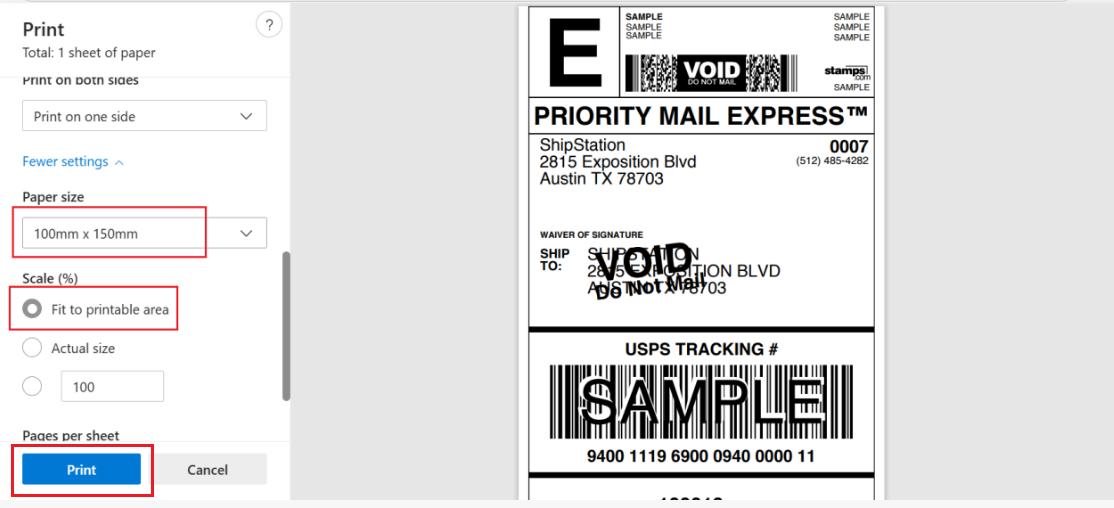
1. After clicking the “Create Shipping Label” button, a pop-up window will appear. Please follow the steps until you reach the “Select Shipping Rate” page.
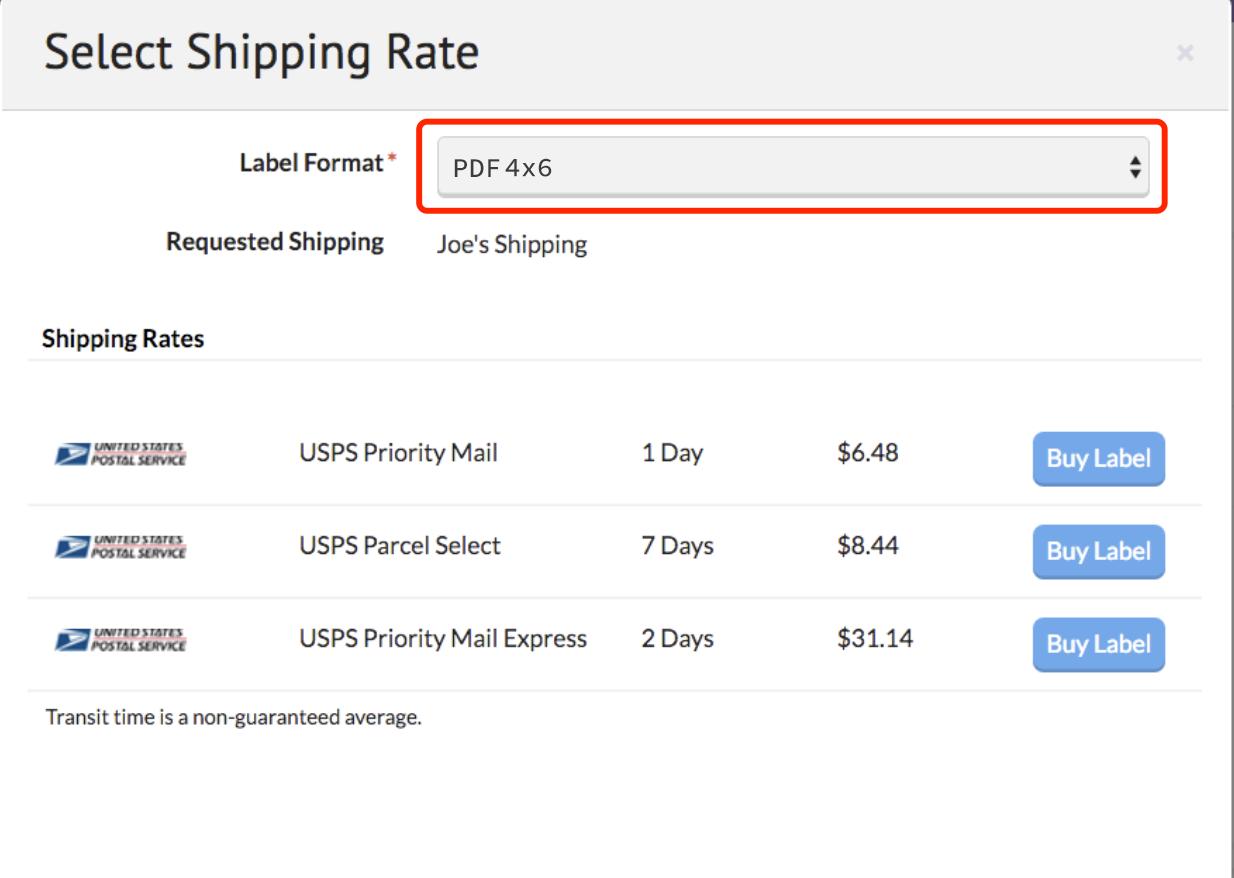
2. Change the label format to “PDF 4×6”. Please note that this change only applies to your new labels.
Reference link:
https://support.sellbrite.com/en/articles/3367223-shipping-your-orders-with-sellbrite
3. Print your labels
For mobile devices:
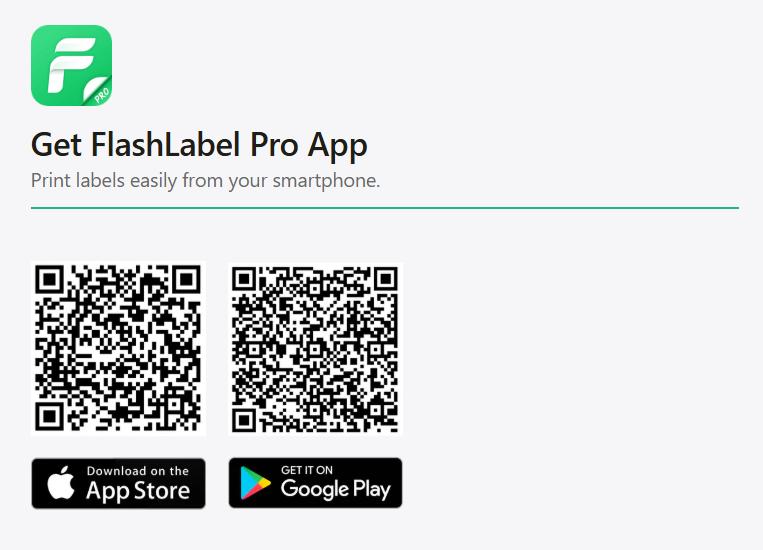
Print labels on your phone using the “Flashlabel Pro” app. Search for “Flashlabel Pro” on the App Store or Google Play to download the app.
Alternatively, you can scan the provided QR code to download the app.
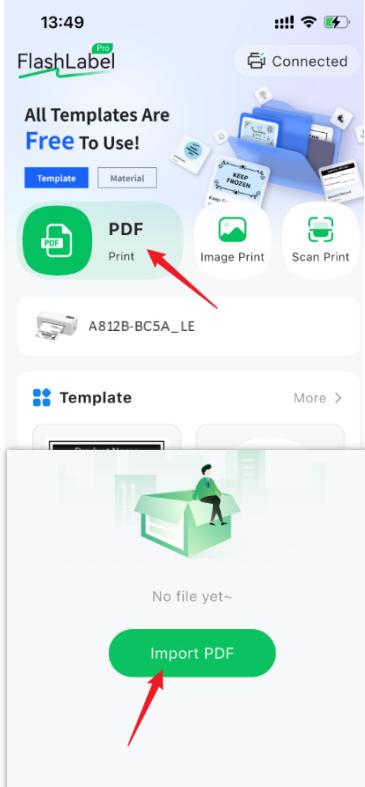
Import your PDF into the application and then print it.
Tips:
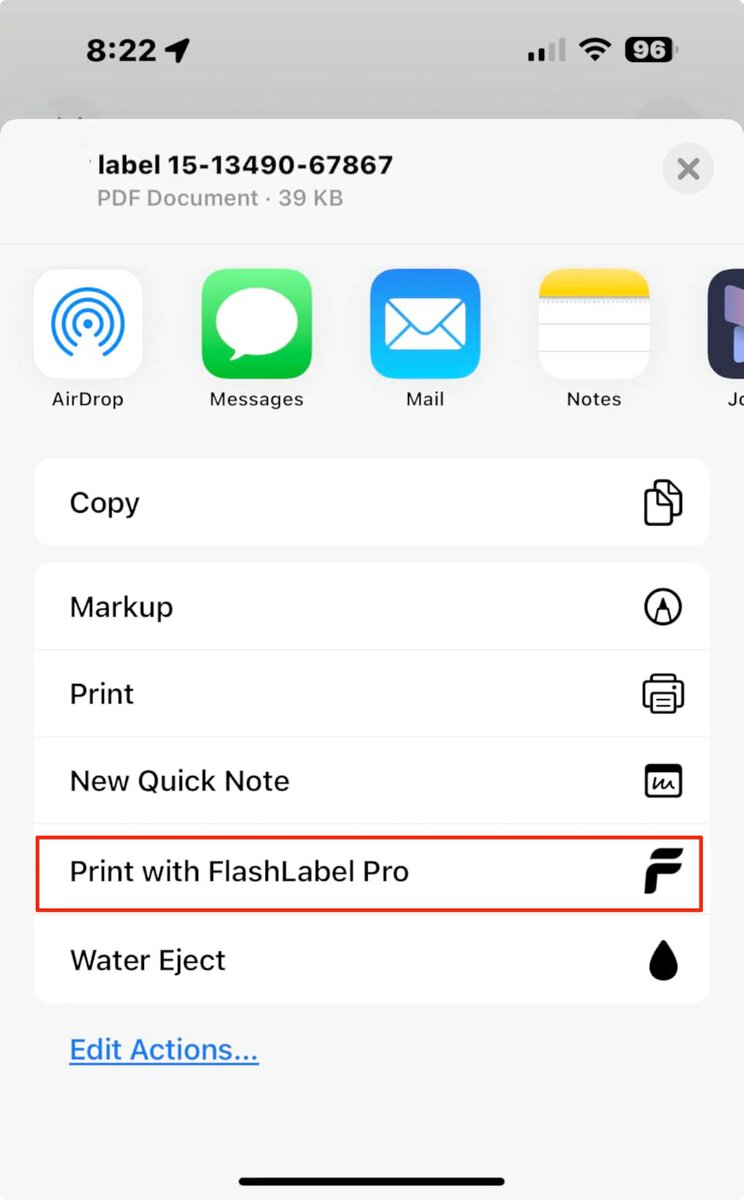
If you’re using an iPhone, tap “Save Label” and scroll down—you’ll see the “Print with FlashLabel Pro” option (see screenshot). You can
print directly from here without saving the PDF or image first.
For Mac:
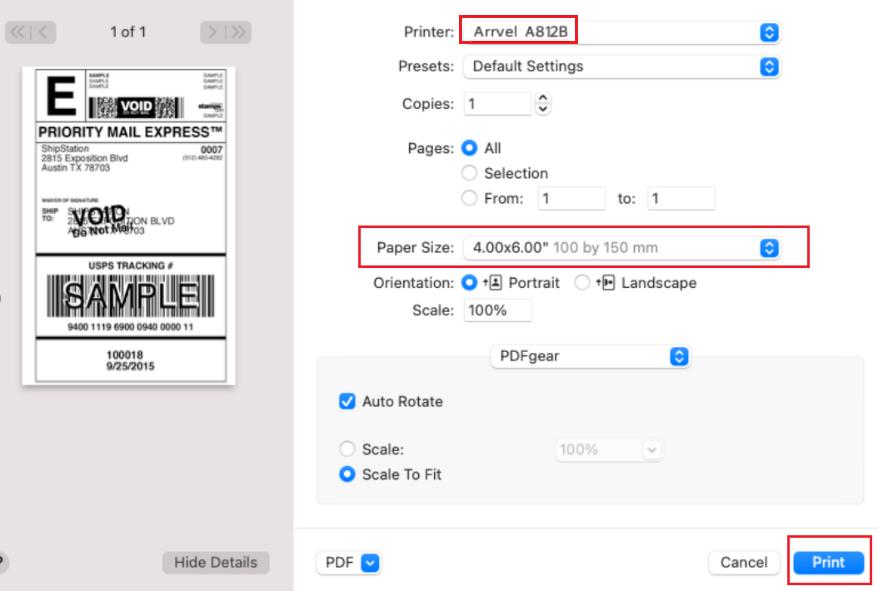
- In the print preview interface, select the Arrvel A812Bprinter.
- Select paper size: 4 x 6 inches
- Click Print
For Windows:
- In the print preview interface, select the Arrvel A812Bprinter.
- Select paper size: 100×150mm
- Click Print.