Step 1: Check if the FlashLabel Pro application is installed.
First, confirm that the “FlashLabel Pro” app is installed on your phone:
iOS (iPhone/iPad): Open the App Store and search for “FlashLabel Pro”.
Android: Open the Google Play Store and search for “FlashLabel Pro”.
If the application is not installed:
Please install using the following method:
Method 1: Download via App Store/Google Play
iOS: Search for “FlashLabel Pro” → Click “Download”.
Android: Search for “FlashLabel Pro” → Click to install.
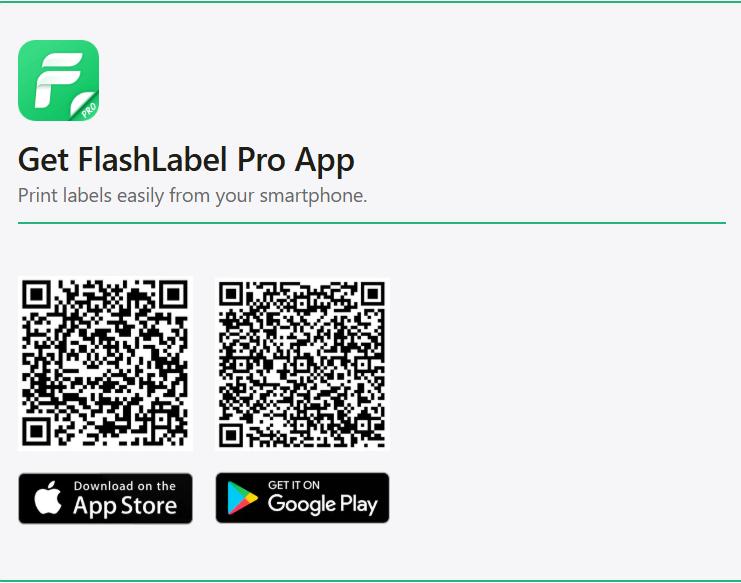
Method 2: Scan the QR code
Please scan the QR code below with your phone’s camera:
Step 2: Check basic requirements
- Ensure Bluetooth is enabled in your phone’s settings.
For Android: Some devices require location permission to pair via Bluetooth. Enable this feature in FlashLabel Pro Permissions > Settings > Apps.
- Printer is on: Confirm that the printer is turned on (press and hold the power button for about three seconds, then release after hearing a “beep” sound).