For Windows systems:
Note: First, identify the USB port your computer has assigned to the printer.
Steps:
- Locate the USB printing support or printer name in Device Manager.
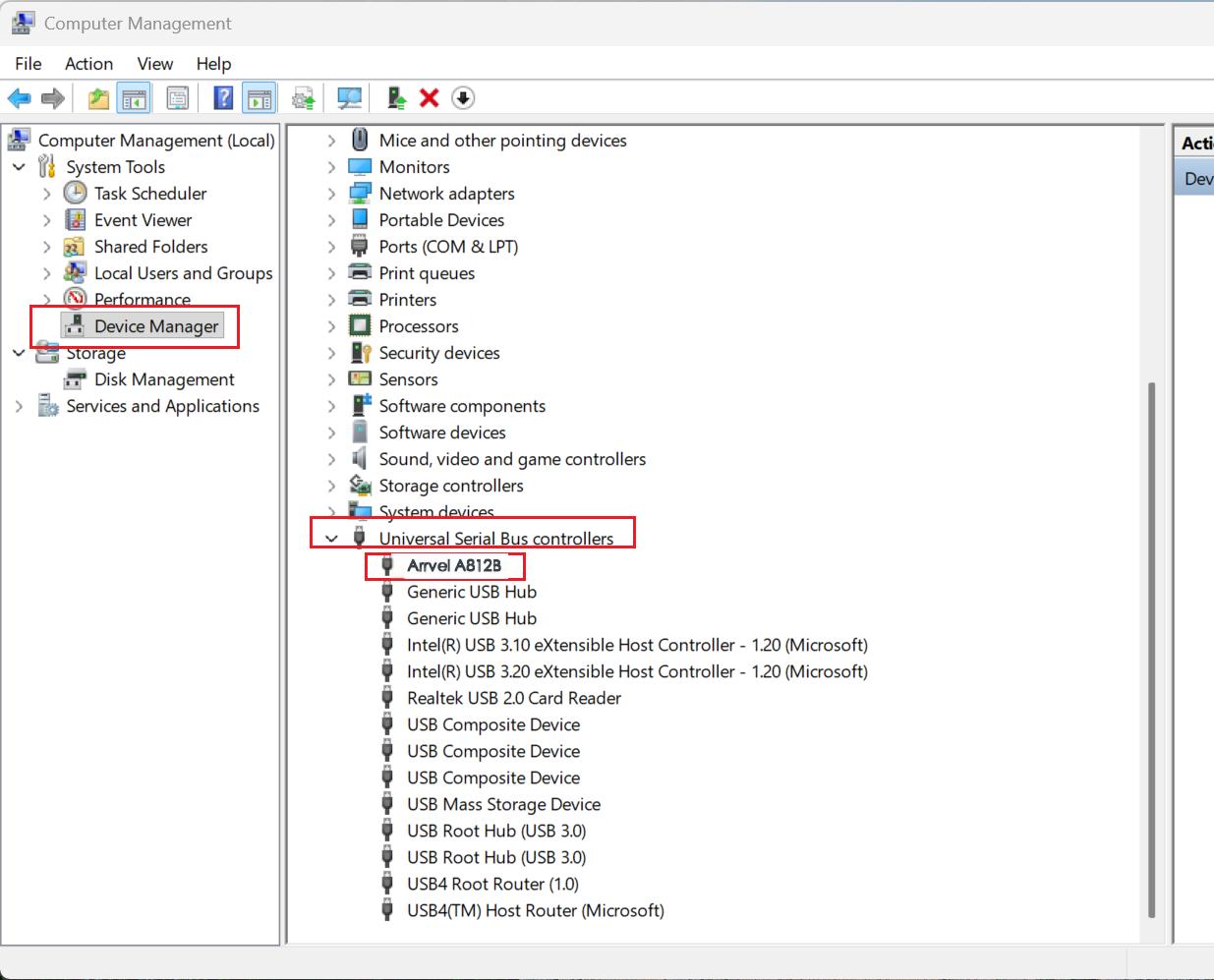
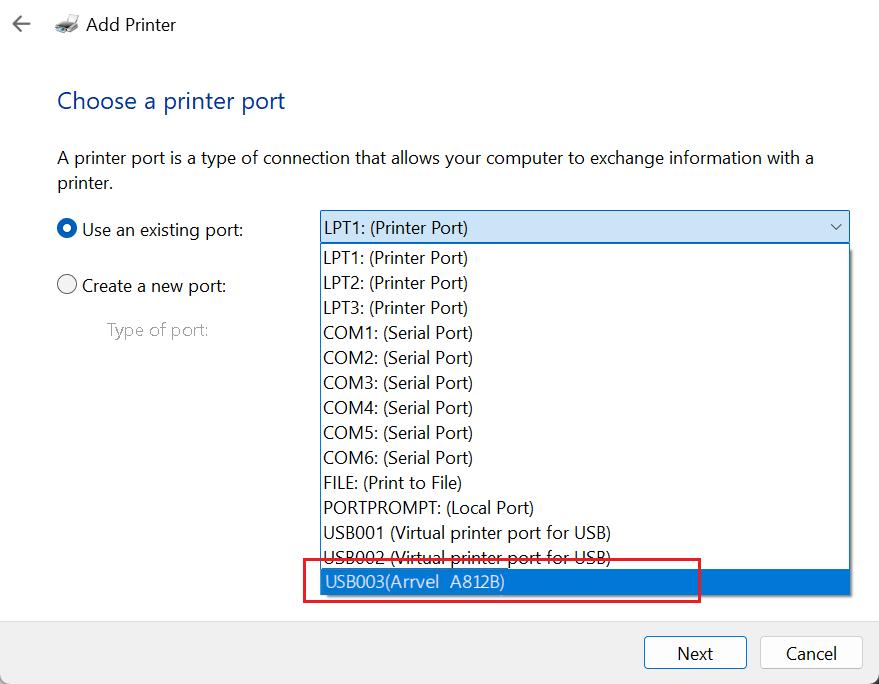
- Follow these steps to check the USB port number assigned to your computer’s printer. For example, your computer might assign the printer USB003.
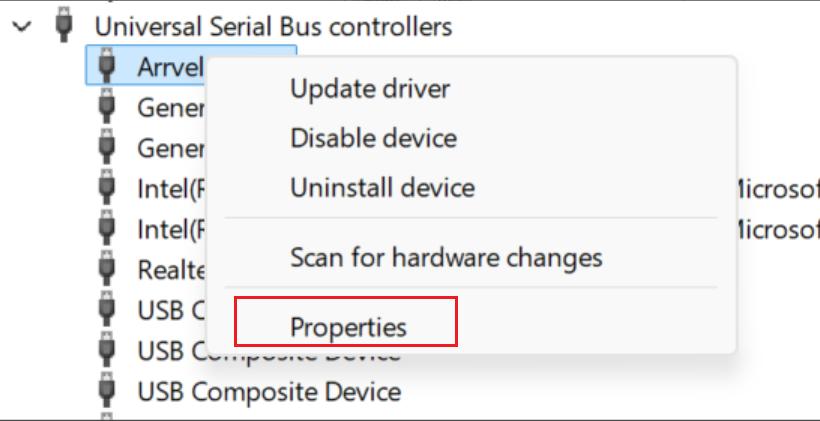
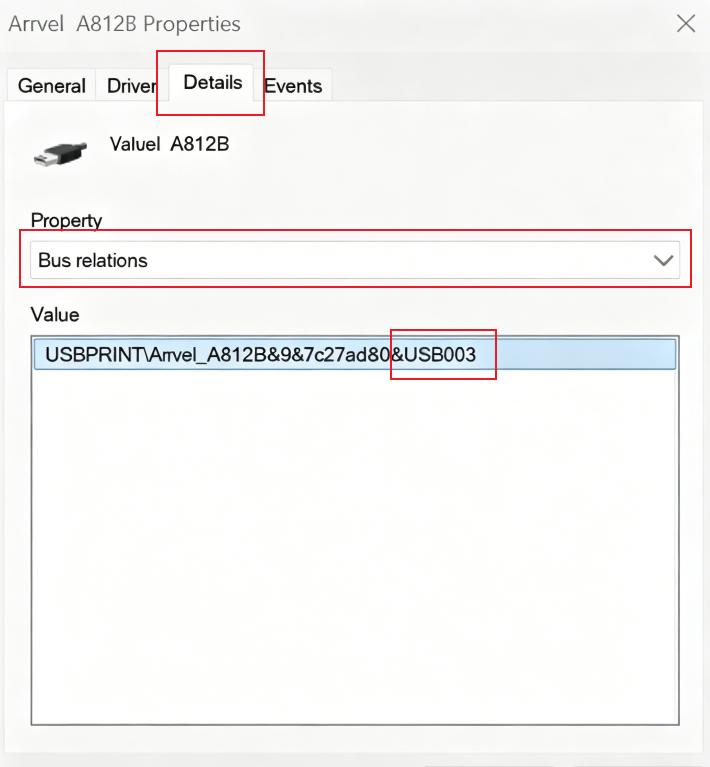
- In the settings, under “Bluetooth & devices”, follow these steps to find “Add a pinter” and click it.
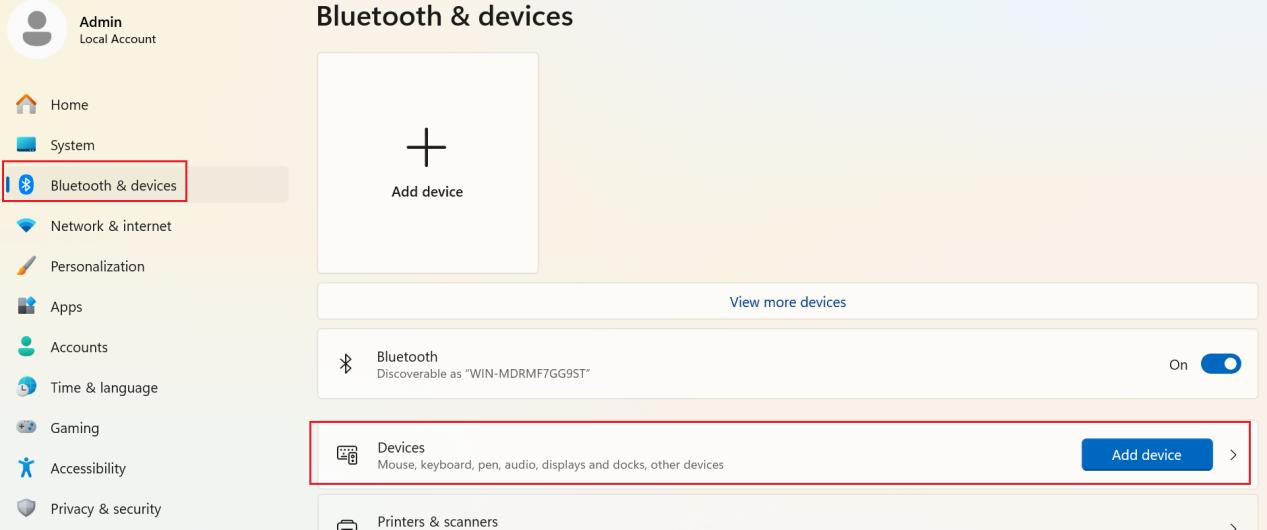
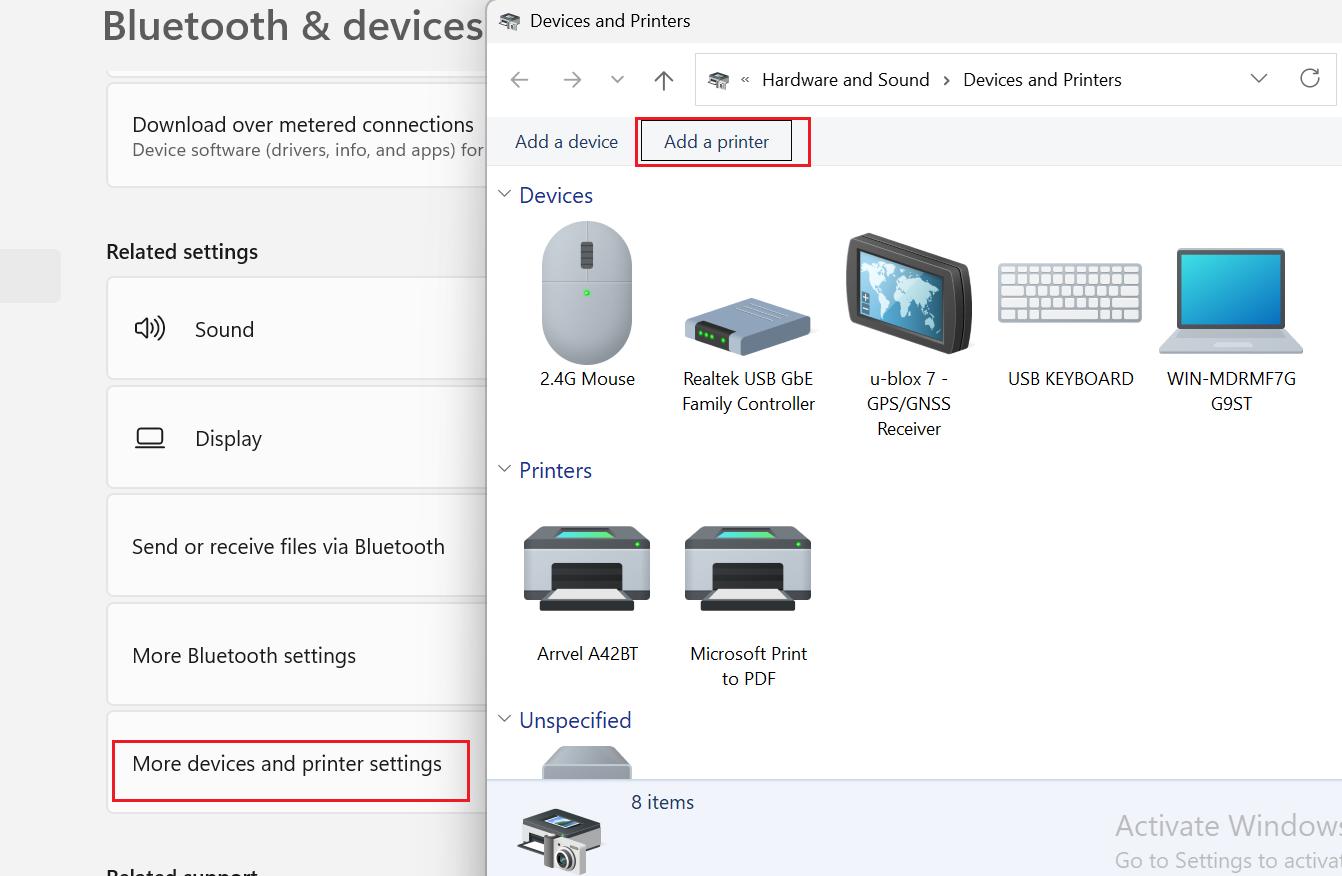
- Enter the “Add a printer”interface
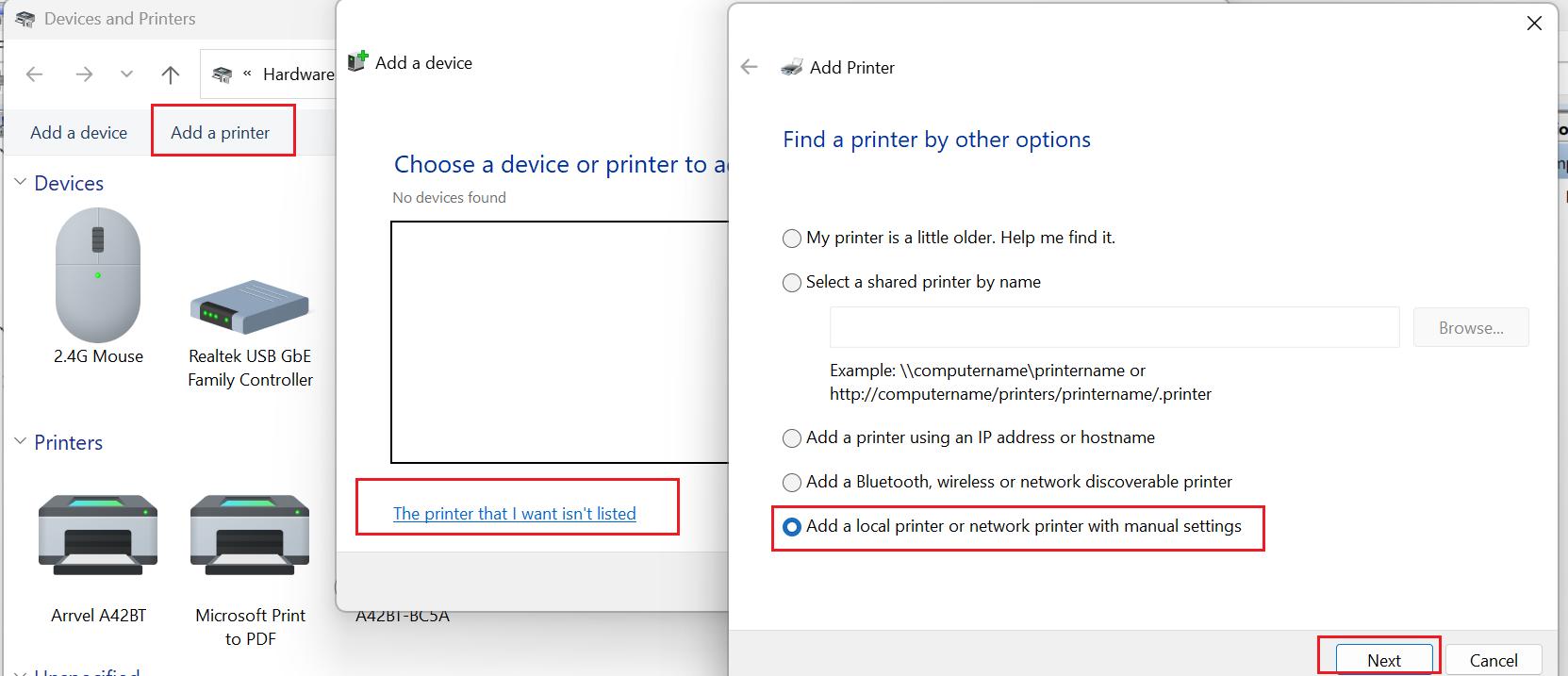
- Select the port number assigned to the printer (e.g., USB003), and then click “Next”.
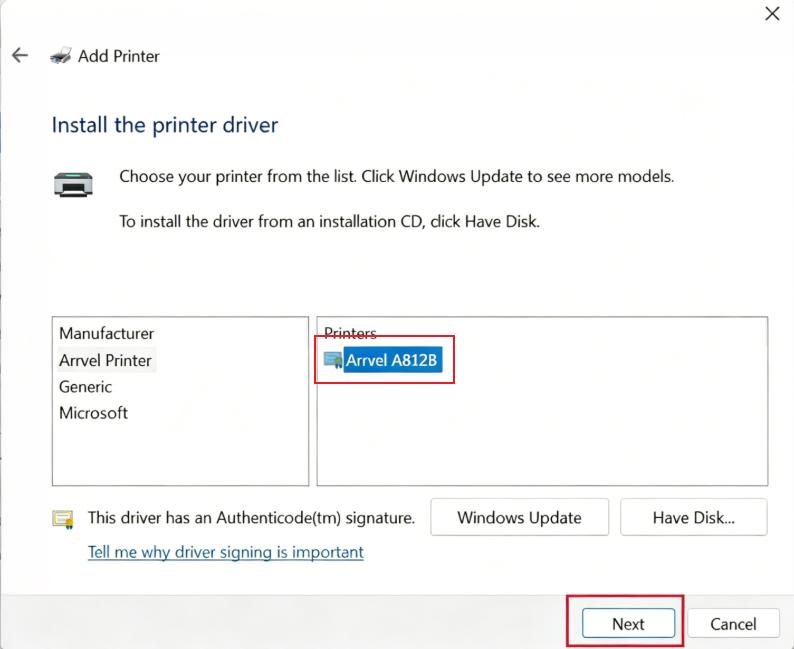
- Select the printer driver “Arrvel A812B” and click “Next”.Continue clicking “Next” to complete the printer setup until finished.
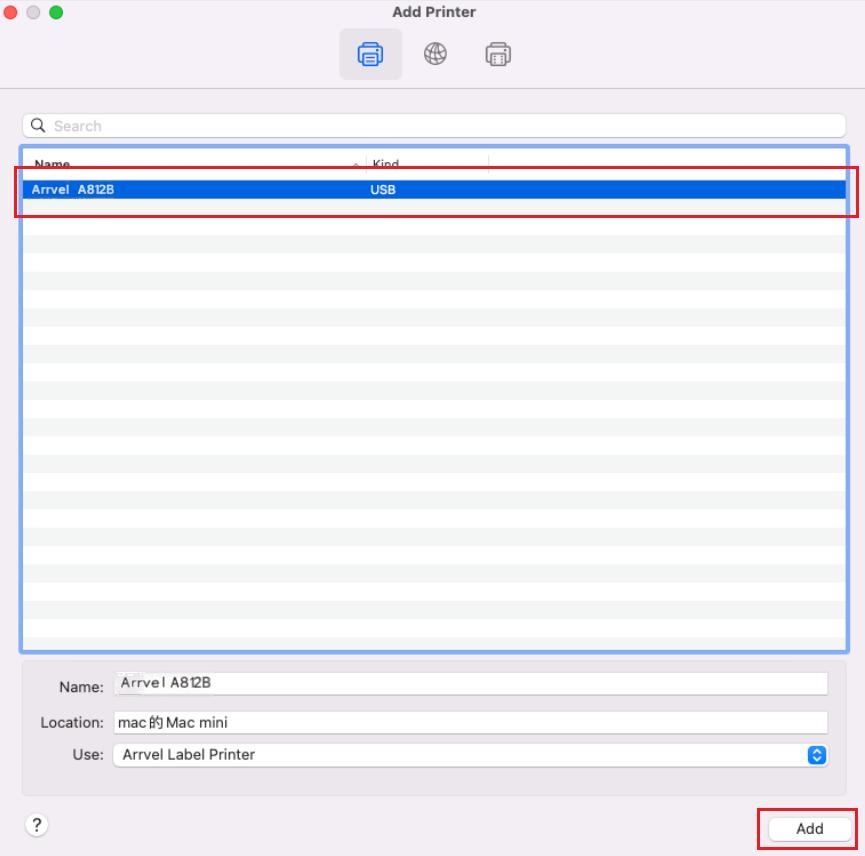
For MAC:
If your printer is not detected on your Mac, please follow these steps.
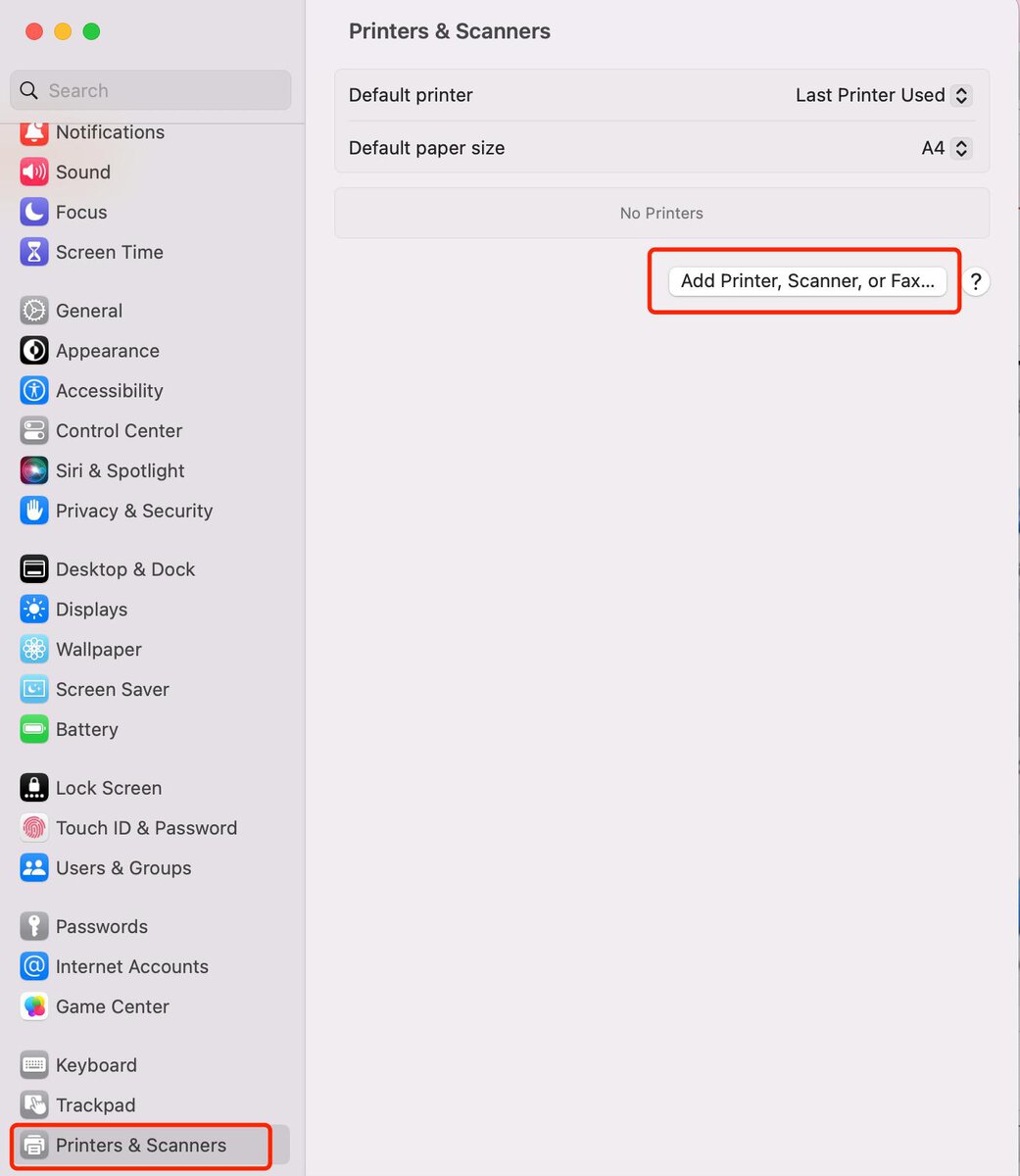
- On your Mac, open “System Settings” and select “Printers & Scanners”. Click “Add Printers, Scanners, or Fax…”.
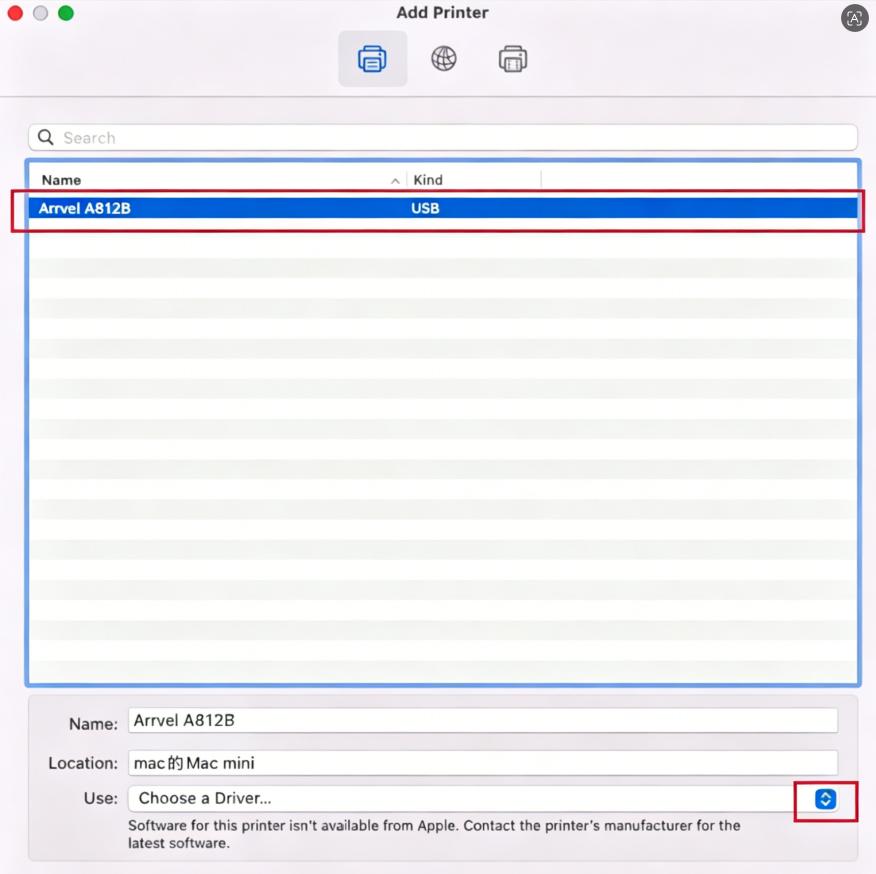
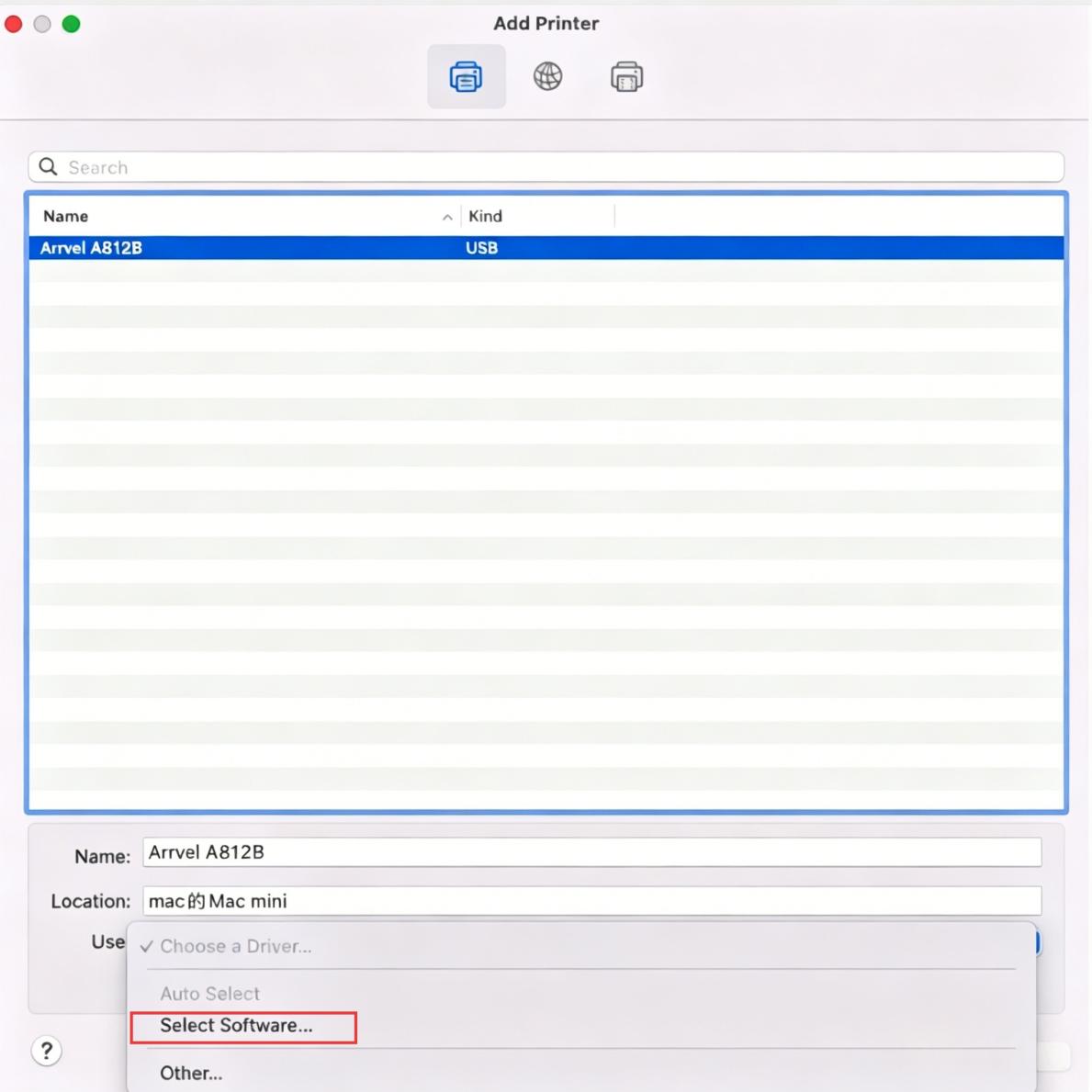
- In the next window, select the Arrvel A812Blabel printer, and then select “Select Software” from the Select Driver drop-down menu.
3. Search for “Arrvel Label Printer” , select it, and then click “OK”.
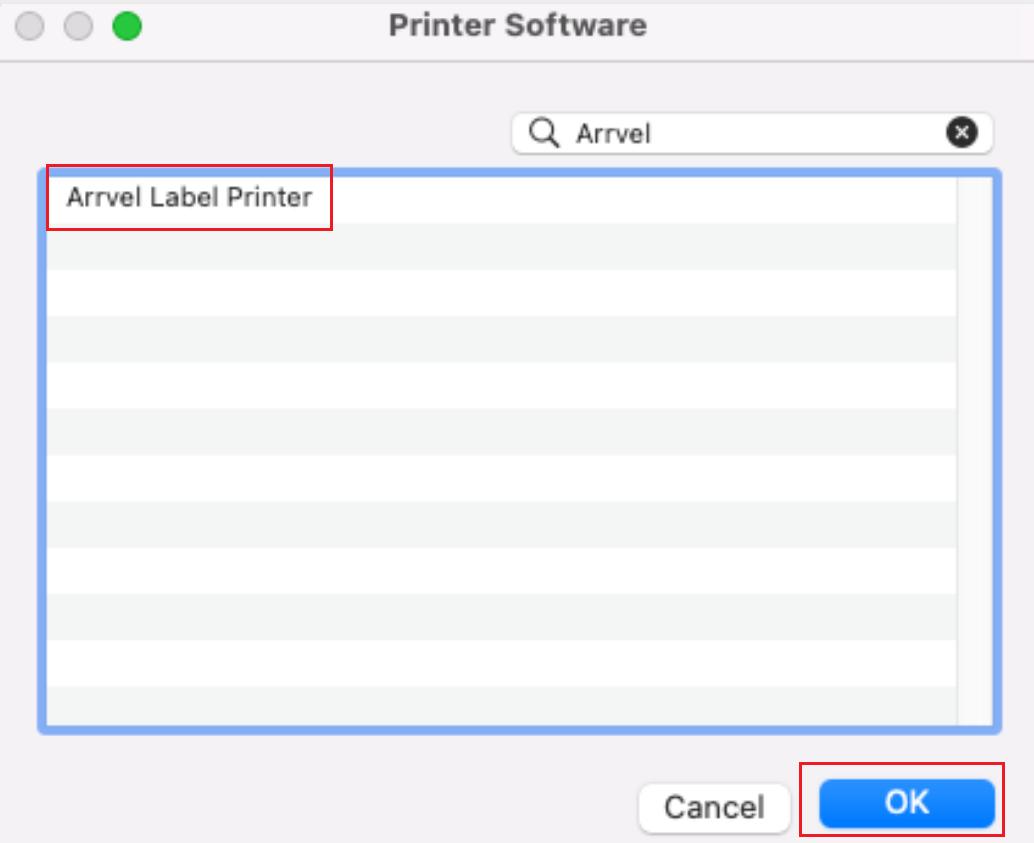
4. Click “Add”, and the printer will appear on your Mac.