How to Configure a 4×6 Inches Shipping Label on the Shippo Platform?
1. Visit Shippo (https://apps.goshippo.com/login?) and log in to your account.
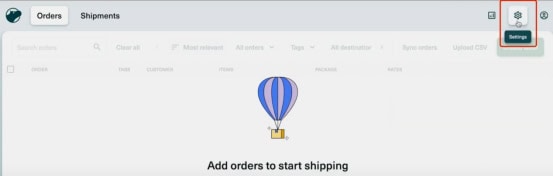
2. Click “Settings” in the top menu.
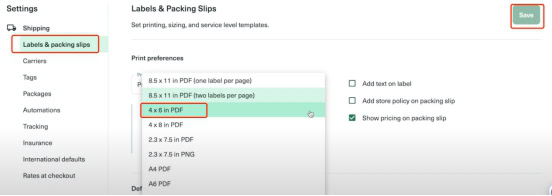
3. Select “Labels & packing slips” from the drop-down menu.
4. Under “Print preferences”, click the drop-down menu.
5. Select “4×6 in PDF” (this is the standard thermal label size).
6. Click “Save” to apply the changes.
7. Print your labels
For mobile devices:
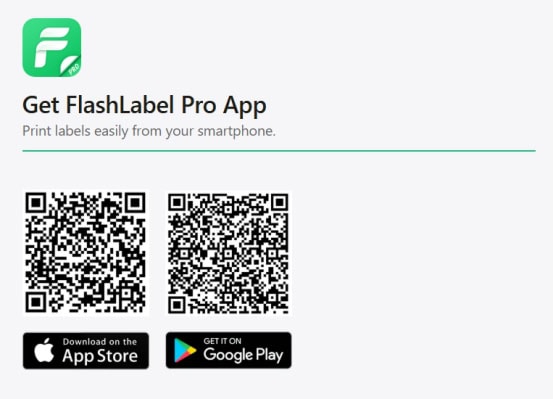
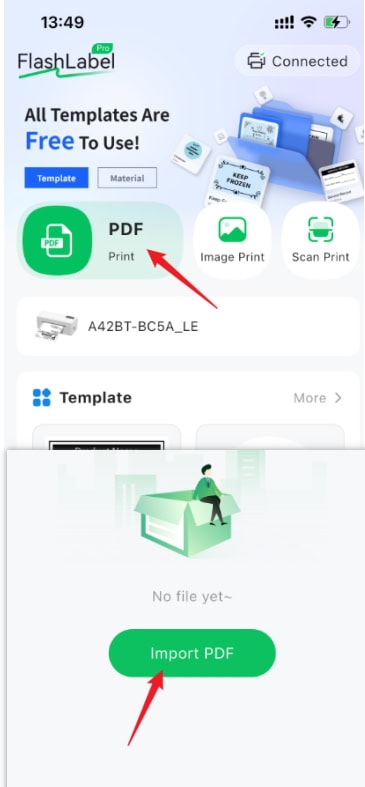
Print labels on your phone using the “Flashlabel Pro” app. Search for “Flashlabel Pro” on the App Store or Google Play to download the app.
Alternatively, you can scan the provided QR code to download the app.
Import your PDF into the application and then print it.
Tips:
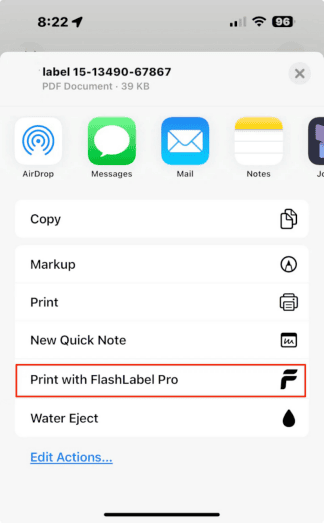
If you’re using an iPhone, tap “Save Label” and scroll down—you’ll see the “Print with FlashLabel Pro” option (see screenshot). You can print directly from here without saving the PDF or image first.
For Mac:
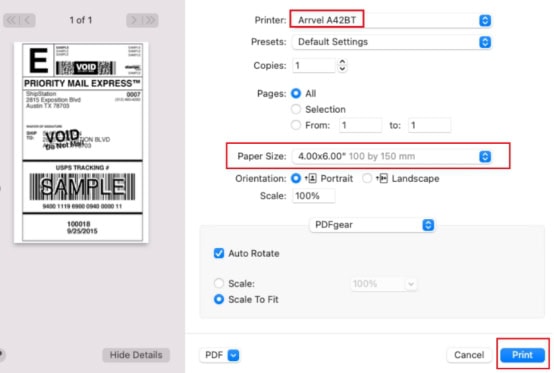
1. In the print preview interface, select the Arrvel A42BT printer.
2. Select paper size: 4 x 6 inches
3. Click Print
For Windows:
1. In the print preview interface, select the Arrvel A42BT printer.
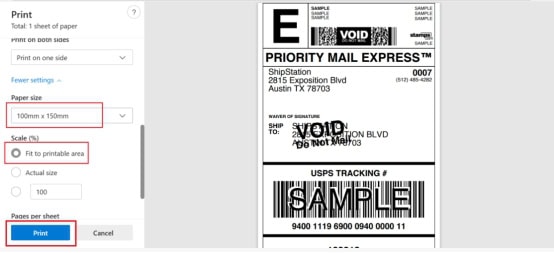
2. Select paper size: 100×150mm
3. Click Print.