How to Create Custom Shipping Labels in Your Printer?
For mobile devices:
1. Go to the FlashLabel Pro application homepage and click the ” + ” symbol.
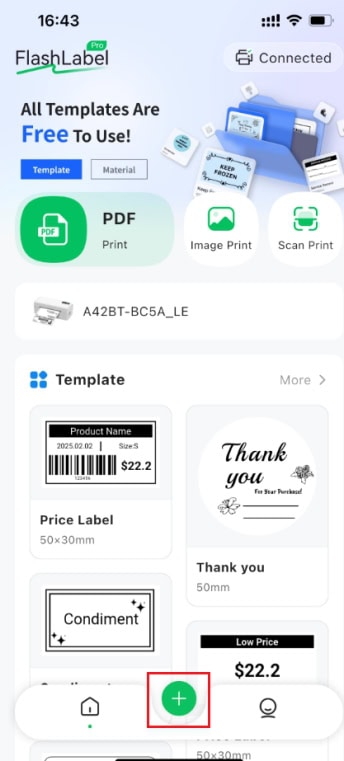
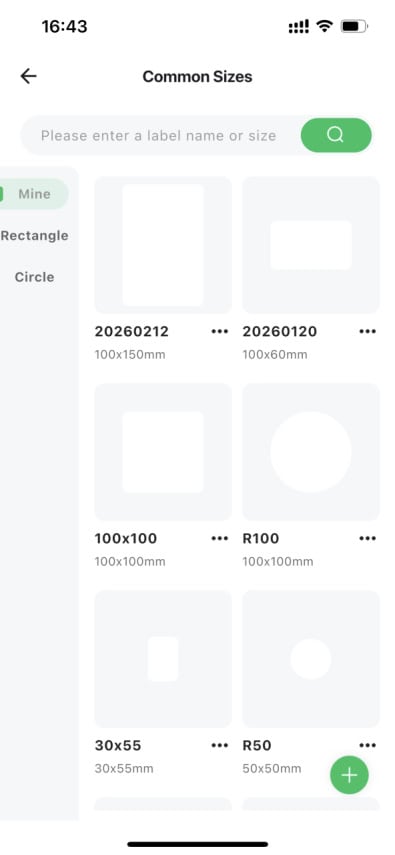
2. Select your paper size
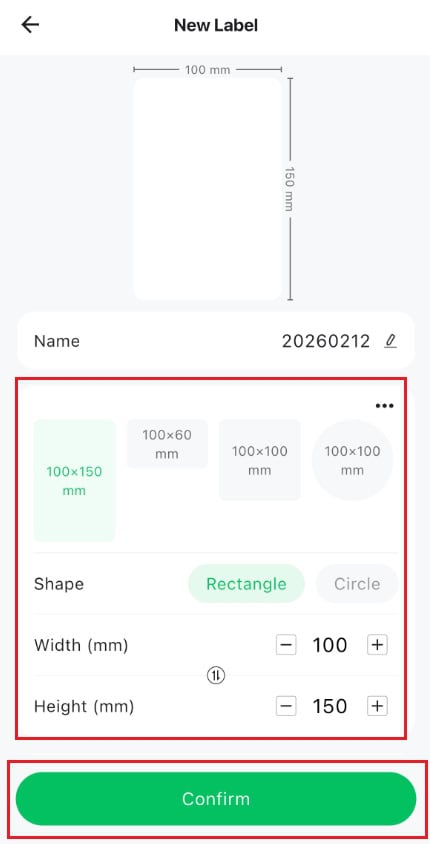
3. You can adjust the shape or size of your paper, and then click “Confirm“.
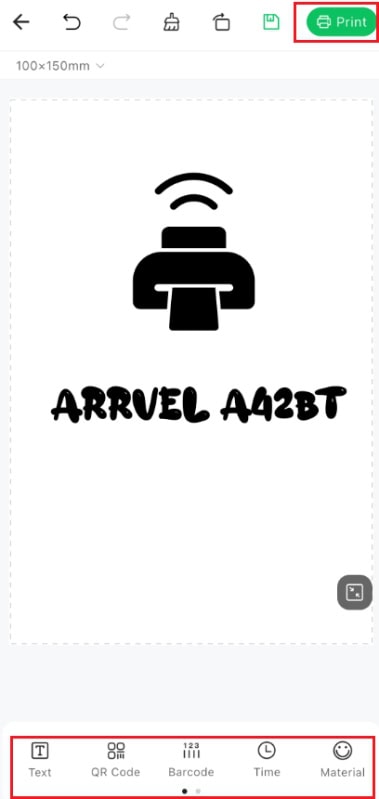
4. Once you’re on the custom paper page, you can select from the provided templates, fonts, shapes, etc., in the navigation bar below to customize your paper. After you’re done, click “Print“.
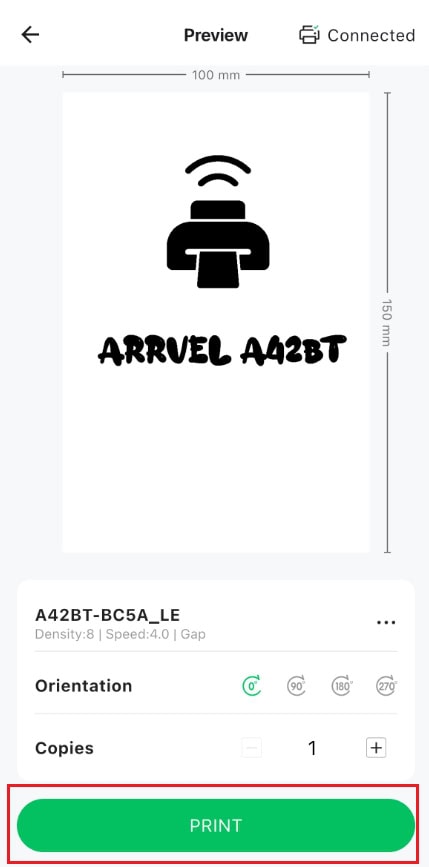
5. In the print preview window, click “Print“.
For Windows and Mac:
1. You can create custom labels by downloading the FlashLabel Pro barcode editor.
Windows: Please click https://yxwl-download.oss-cn-hangzhou.aliyuncs.com/Windows/FlashLabelProPC_Installer_x64_v1.0.1_signed.exe to download.
Mac: Please click https://yxwl-download.oss-cn-hangzhou.aliyuncs.com/Mac/FlashLabelProPC_Installer_universal_v1.0.1.dmg to download.
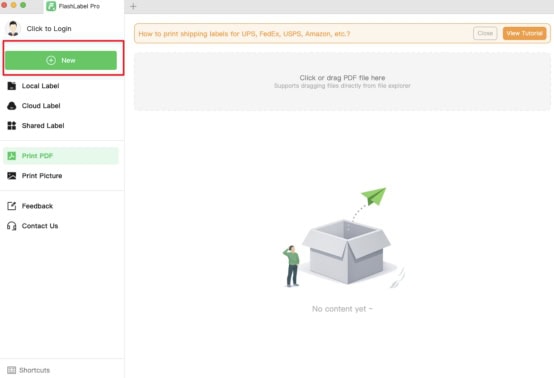
2. After downloading is complete, open the app and click “New”.
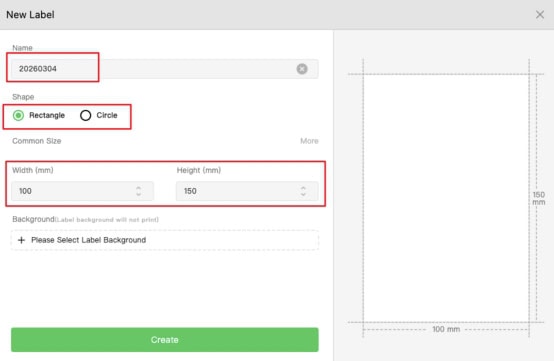
3. You can customize your label name, adjust your paper shape or size, and click “Create” after making changes.
4. On the Custom Paper page, you can select templates, fonts, shapes, and other options from the left navigation bar to customize your design. Once finished, click “Print”.
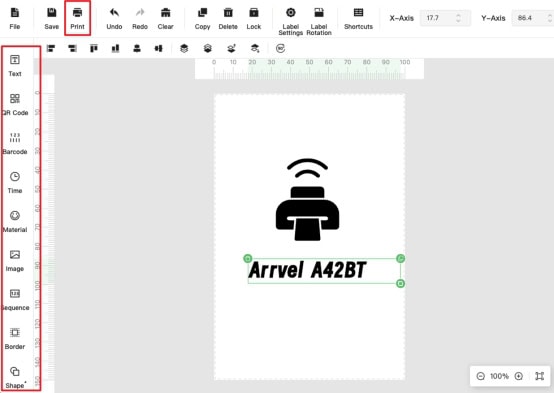
If you only want to customize the label size, you can also do so by following these steps:
For Windows:
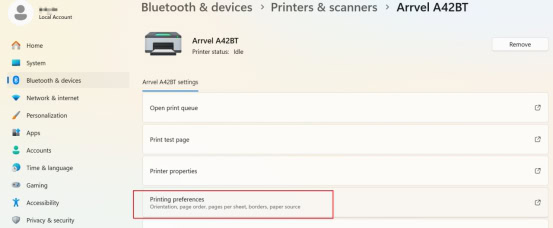
1. Enter the settings interface:
Click Settings → Bluetooth & devices → Printers & scanners → Click “Arrvel A42BT” → Printing preferences → Page Setup → New.
Please follow these steps to set it up:
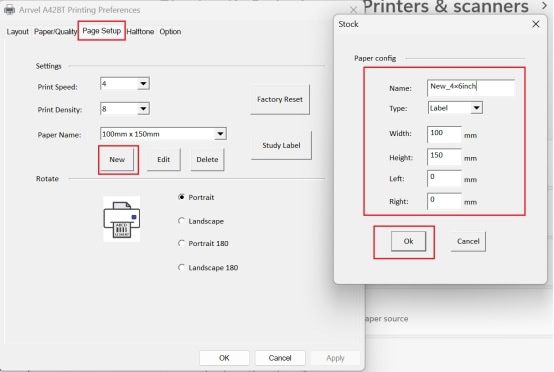
2. Set the parameters according to the paper size you want to print on, and then click “OK“.
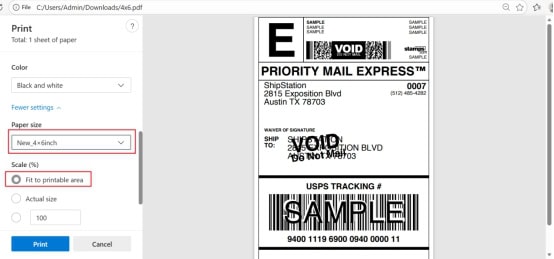
Open your PDF file, select the size you added (matching the paper size), and then select “Fit to printable area“.
For MAC:
1. On the print preview page, click “Paper Size“.
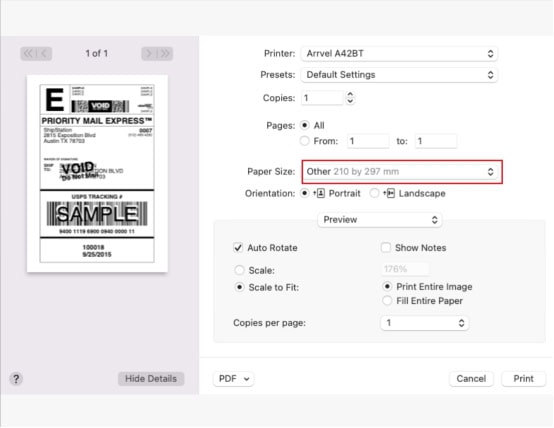
Select “Manage Custom Sizes“.
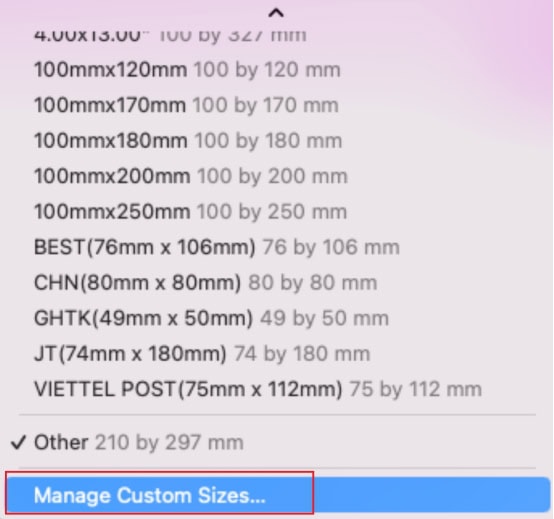
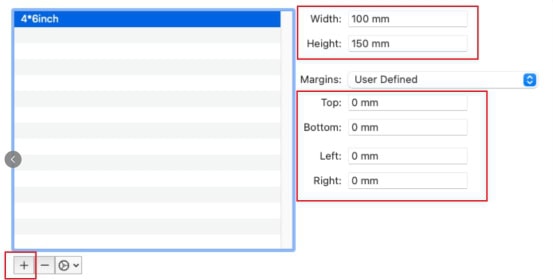
Click the “+” button, enter your paper size and margins, and then click “OK“. You can rename your new label size by double-clicking the highlighted item on the left.
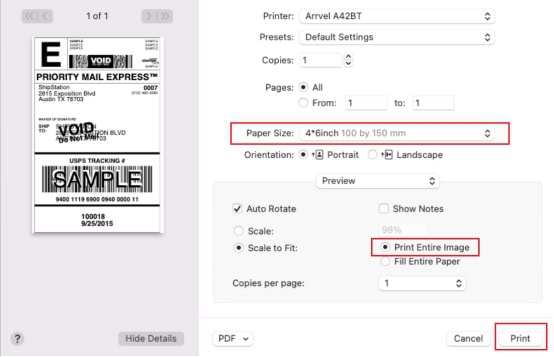
Select the size you want to add (it must match the paper size), and then select “Print Entire Image“.
For Linux:
1. On the print preview page, click “Paper size” and select “Manage Custom Sizes…”
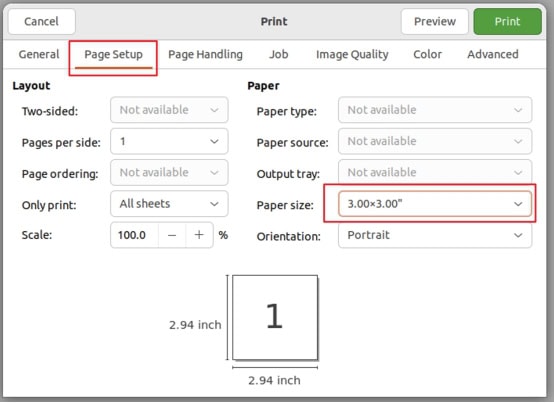
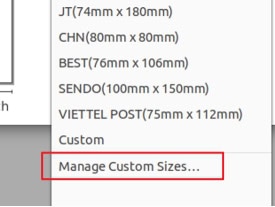
2. After entering your paper size and margins in the next window, you can rename your new label by double-clicking the item on the left.
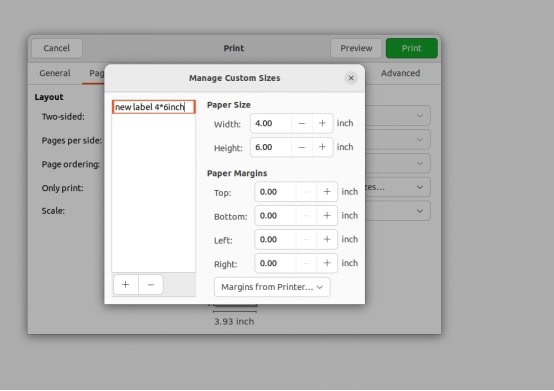
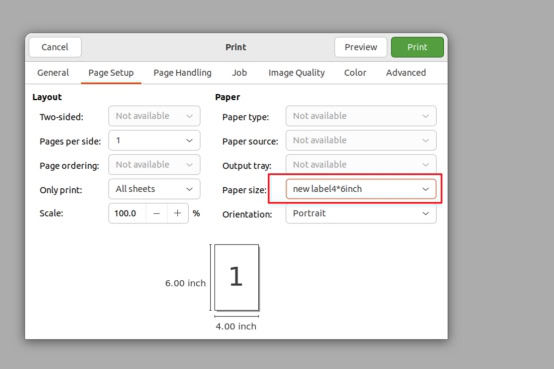
3. Select the size you added for printing. (It must match your paper size.)