How to Print a 4×6 Inches Shipping Label on the Shopee Platform?

How to Print a 4×6 Inches Shipping Label on the Shopee Platform?

I. Before arranging shipment:

1. Click “My Sales” → “To Ship” → “Arrange Shipment” on the Shopee App.
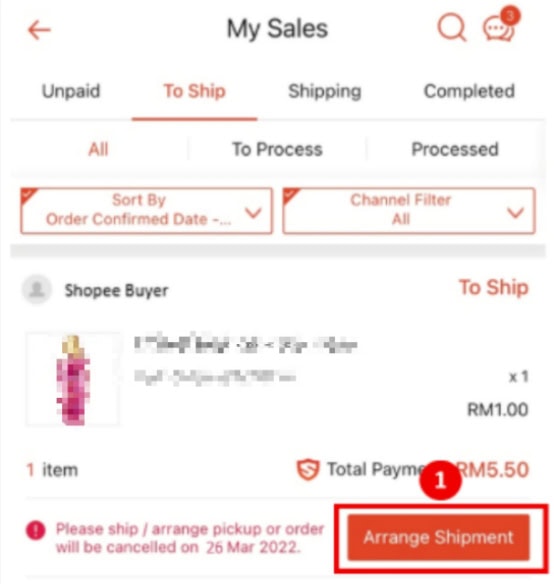
Click "My Sales" → "To Ship" → "Arrange Shipment" on the Shopee App.

2. Select the shipping type for your order, and then click “Confirm“.
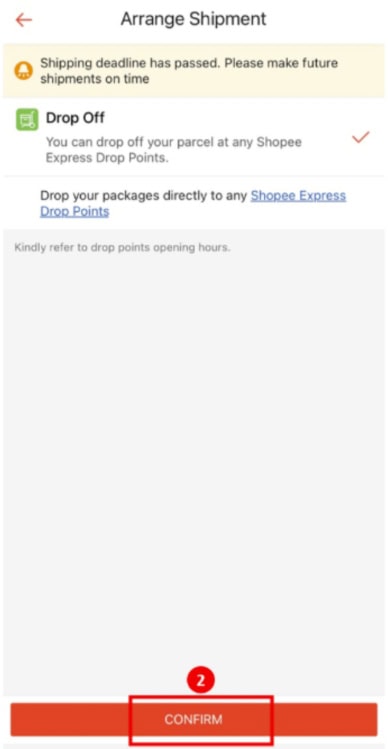
click "Confirm".

3. Select “Print Waybill” to generate a PDF file.
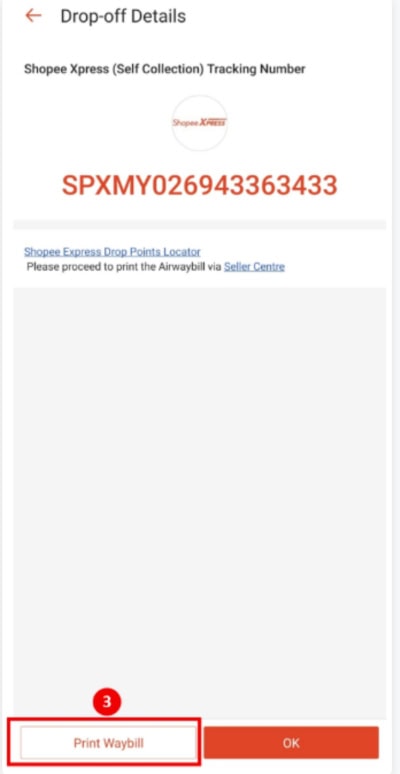
Select "Print Waybill"

4. Wait for the PDF file to be generated. Once ready, you can download it to your device.
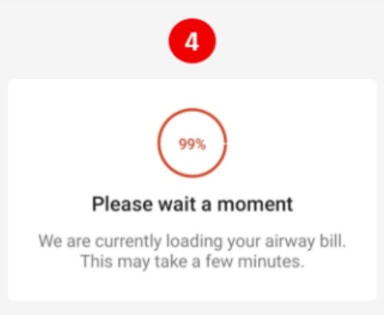
wps45

5. Click the following icons to print, share, or download the AWB file.
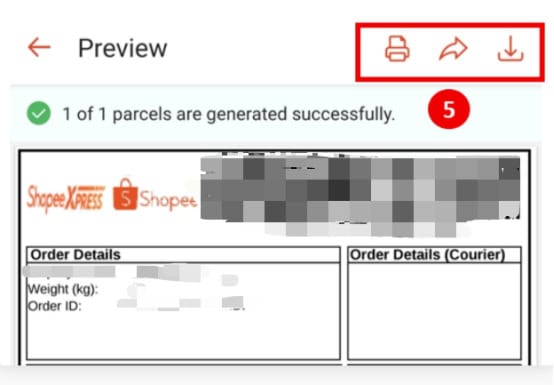
Click the following icons to print

II. After the order is shipped:

1. Select “My Sales” → “To Ship“, and click on the arranged shipping order.
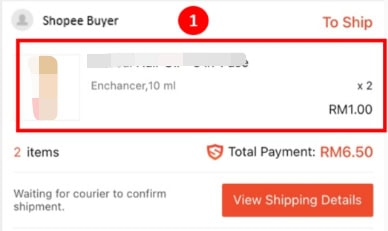
Select "My Sales" → "To Ship",

2. Select “Print Waybill” to generate a PDF file.
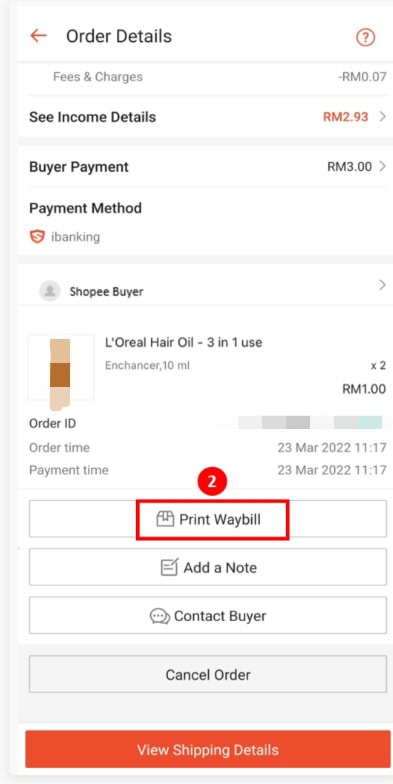
Select "Print Waybill" to generate a PDF file.

3. Wait for the PDF file to be generated.
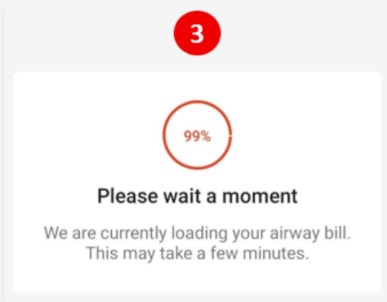
Wait for the PDF file to be generated.

4. Click the following icons to print, share, or download the AWB file.
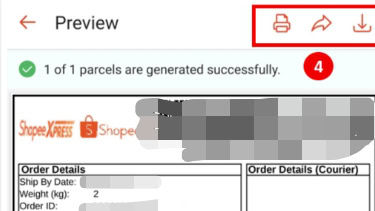

Click the following icons to print, share, or download the AWB file.

Picture of ARRVEL
ARRVEL

As a professional provider of rugged electronic devices & Printing Solutions, Arrvel is committed to delivering high-performance, durable products including rugged phones, tablets, handhelds, and universal printers to global users.

Leave a Reply

Your email address will not be published. Required fields are marked *