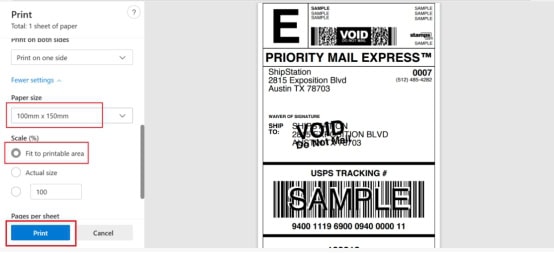
How to Set Up 4×6 Inches Shipping Label Printing in the TikTok Shop?
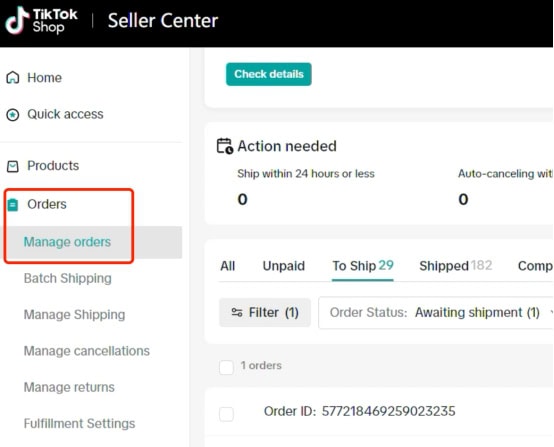
Step 1: Access Order Management
Log in to your TikTok shop seller center.
In the left sidebar, select “Orders” → click “Manage orders” (highlighted in the screenshot).
Step 2: Open shipping settings for your order
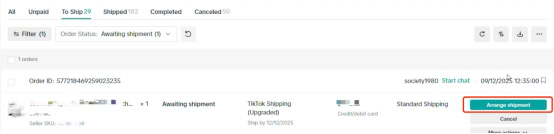
In the order list, switch to the “Shipping” tab.
Find your target order and then click the “Arrange shipment” button next to it (shown in red in the screenshot).
Step 3: Access Print Document Settings
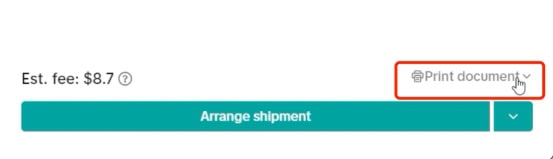
In the “Arrange shipment” pop-up window:
Scroll to the bottom right corner and then click the “Print document” drop-down menu (shown in red in the screenshot).
Step 4: Enter the label format editing.
From the print document drop-down menu:
Select the edit option (shown in red in the screenshot) to adjust the label size.
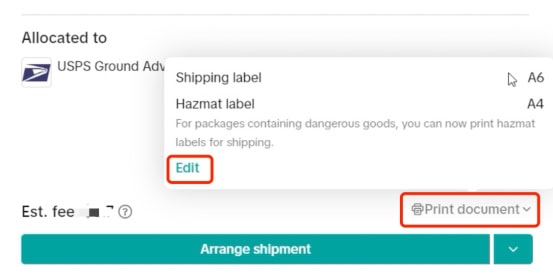
Step 5: Set the label size to 4×6 inches.
In the “Confirm your print settings” window, click “Edit format settings” (shown in red in the screenshot).
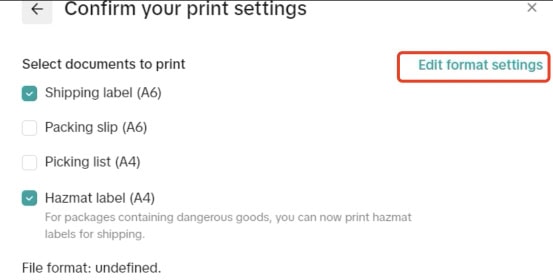
On the “Document Format Options” page:
In the size section, select 4×6 inches for the shipping label (and packing slip if needed). Click Save to apply the 4×6 inches configuration.
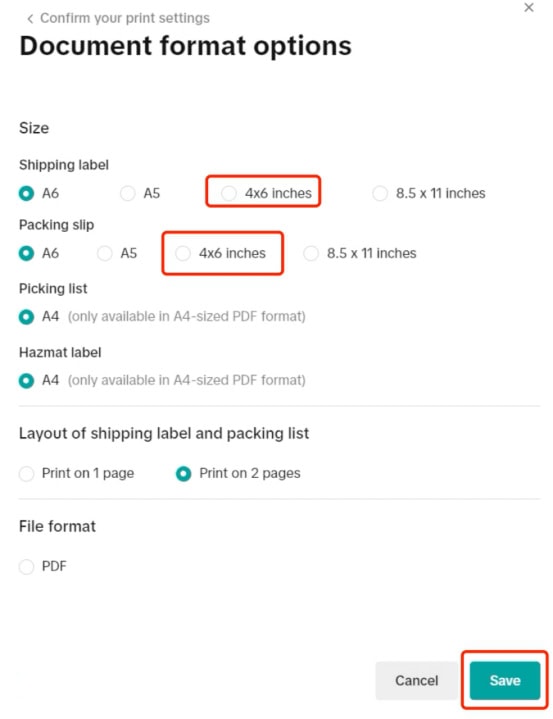
Step 6: Print your labels
For mobile devices:
Print labels on your phone using the “Flashlabel Pro” app. Search for “Flashlabel Pro” on the App Store or Google Play to download the app.
Alternatively, you can scan the provided QR code to download the app.
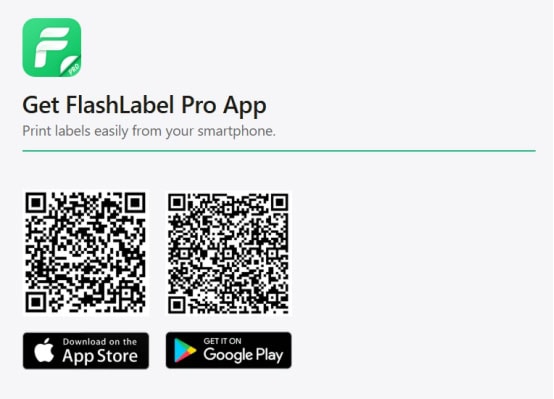
Import your PDF into the application and then print it.
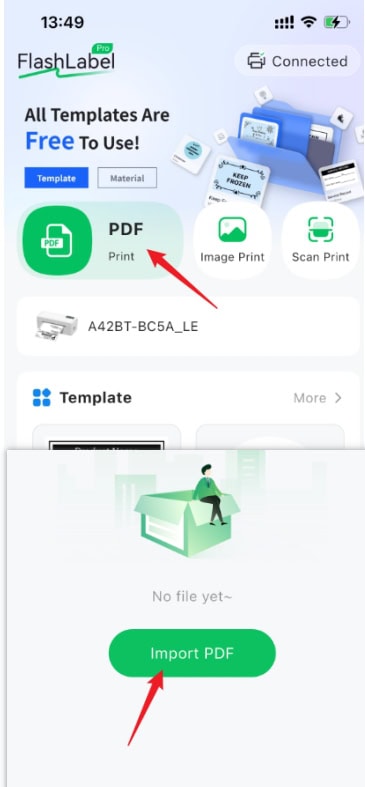
Tips:
If you’re using an iPhone, tap “Save Label” and scroll down—you’ll see the “Print with FlashLabel Pro” option (see screenshot). You can print directly from here without saving the PDF or image first.
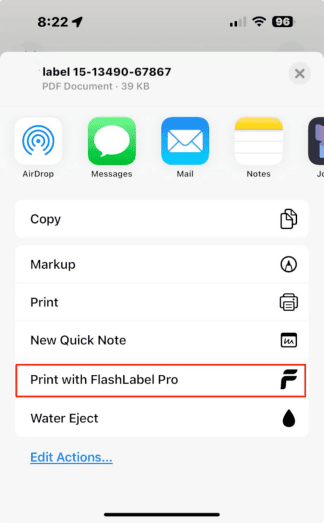
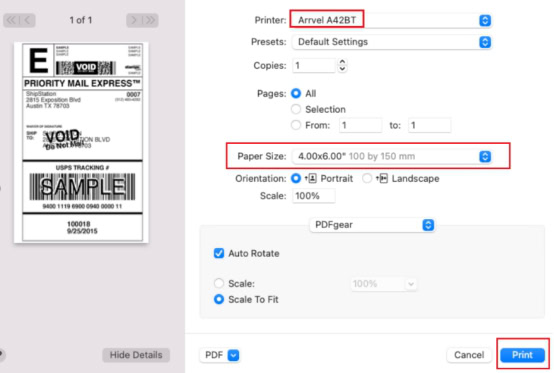
For Mac:
1. In the print preview interface, select the Arrvel A42BT printer.
2. Select paper size: 4 x 6 inches
3. Click Print
For Windows:
1. In the print preview interface, select the Arrvel A42BT printer.
2. Select paper size: 100×150mm
3. Click Print.