Supported model: A42BT
Welcome to Arrvel Print!
It takes a few minutes to show how to install the driver on MacOS for A42BT:Video
How to Use the Printer on macOS via USB Cable?
The printer needs to have a driver installed on the computer to function properly.
Steps:
1. Connect the power cord to the adapter, connect it to the printer, and then plug it into a power outlet.
2. Connect the printer to the computer using a USB cable.
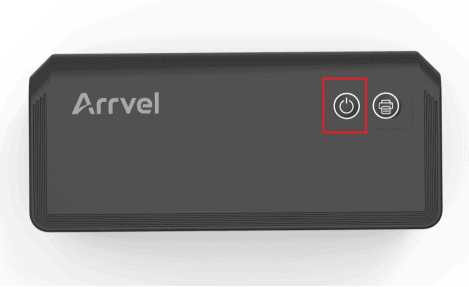
3. Press and hold the power button for 3 seconds to turn on the printer.
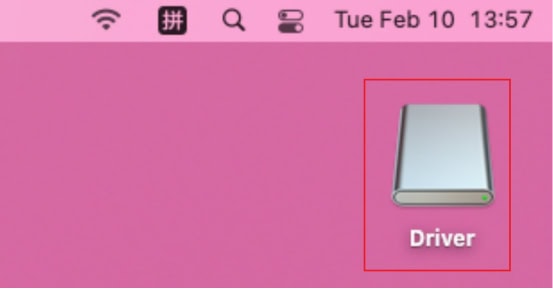
4. After powering on, the computer will recognize the printer and automatically generate a driver file. Double-click to open the driver file. (Note: If no driver file is generated, please click this link: A42BT Resource Center to download it. The subsequent steps are the same.)
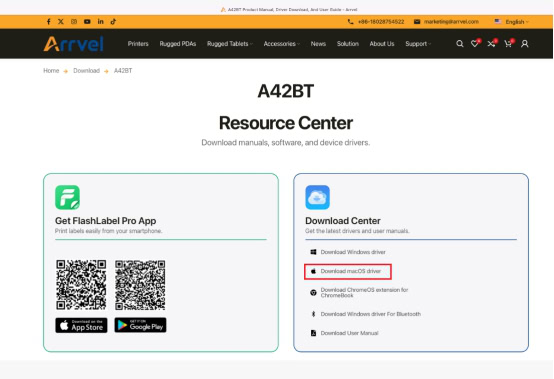
5. Click the link to download the driver.
6. Click “Allow”.
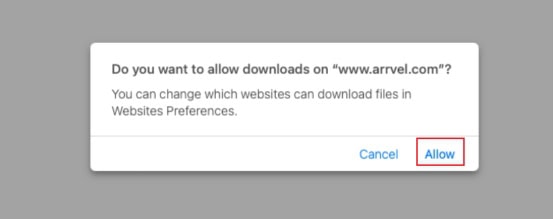
Click “Allow”
7. Double-click to open the downloaded .pkg driver file.
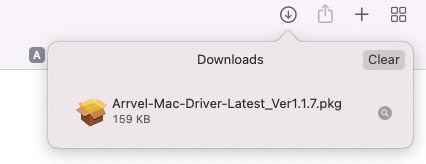
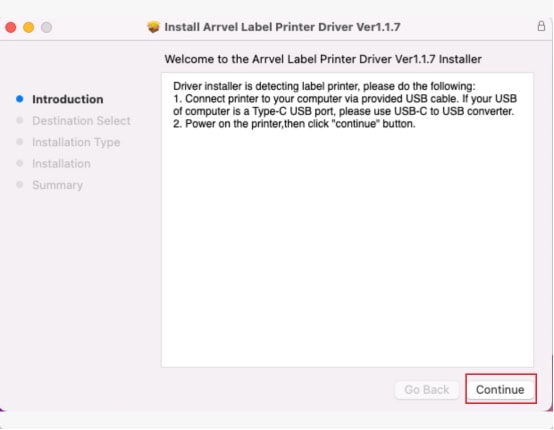
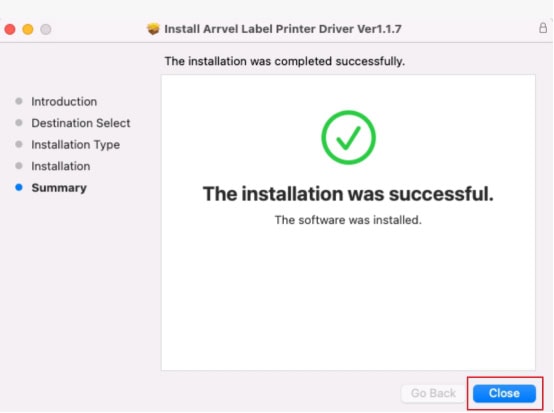
8. Follow the prompts to complete the installation steps until you see the message: “Installation was successful”.
Note:
If the printer does not appear on your Mac, try unplugging and reconnecting the USB cable between the printer and the Mac, and then restarting the printer.