Step-by-Step Guide to Adjusting the Size of 4×6 Inches Shipping Labels on the eBay Platform.
1. Accessing transport label settings :
① Log in to eBay Seller Center
Go to ebay.com and click “Hello, [Your Name]!” > “Seller Center“.
② Navigate to command
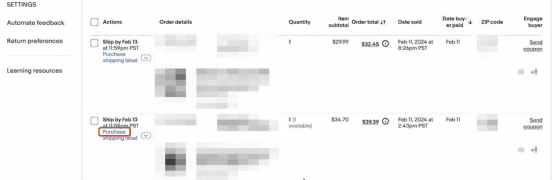
In the left-hand menu, click “Orders” > “Waiting for Shipment“.
Select your order and click “Purchase Shipping Order“.
2. Adjust the label size :
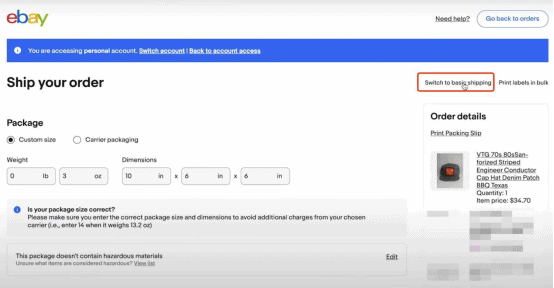
① Switch to advanced shipping settings
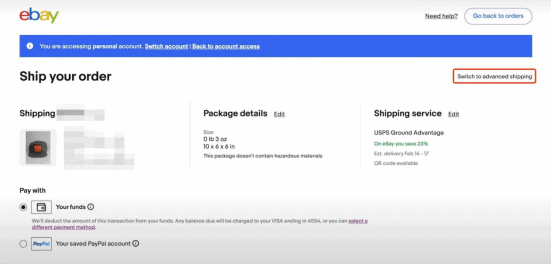
On the tag purchase page, locate and click “Switch to advanced shipping” (or a similar setting). Note: The basic view hides key options; advanced mode is required.
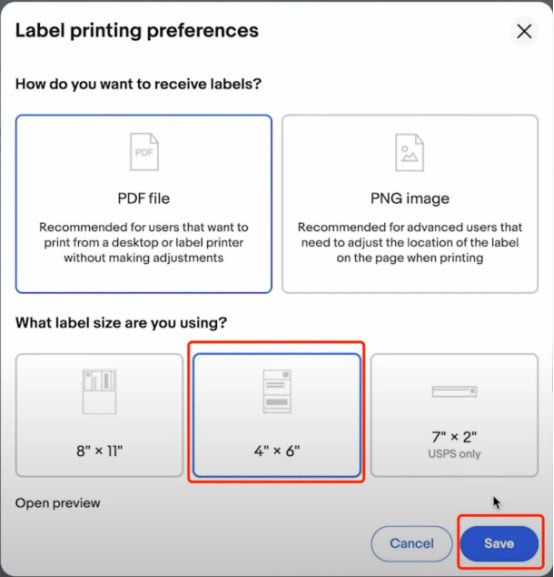
② Adjust the print format to 4×6
Scroll down to the print format section and click Change.
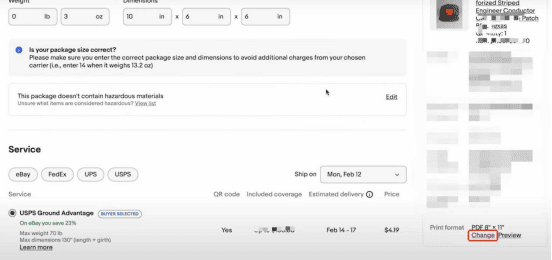
Select 4×6 thermal label (the default is 8.5×11), and then click “Save”.
③ Purchased by the complete record label
Switch to basic shipping or enter advanced mode.
Complete the payment as usual. Key note: Settings will be automatically saved for future label usage.
3. Print your labels
For mobile devices:
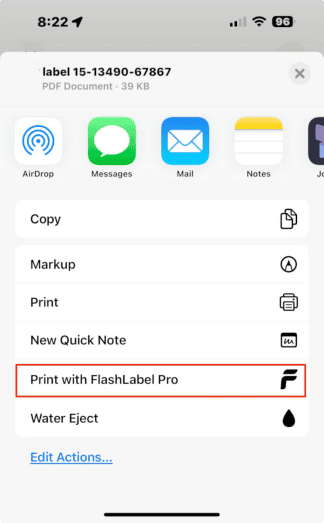
Print labels on your phone using the “Flashlabel Pro” app. Search for “Flashlabel Pro” on the App Store or Google Play to download the app.
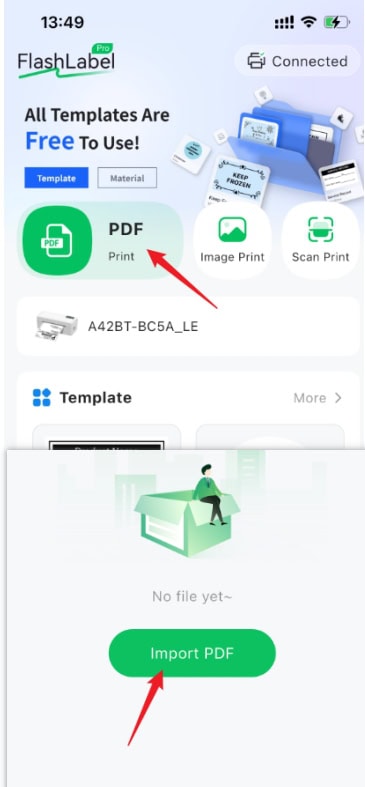
Import your PDF into the application and then print it.
Tips:
If you’re using an iPhone, tap “Save Label” and scroll down—you’ll see the “Print with FlashLabel Pro” option (see screenshot). You can print directly from here without saving the PDF or image first.
For Mac:
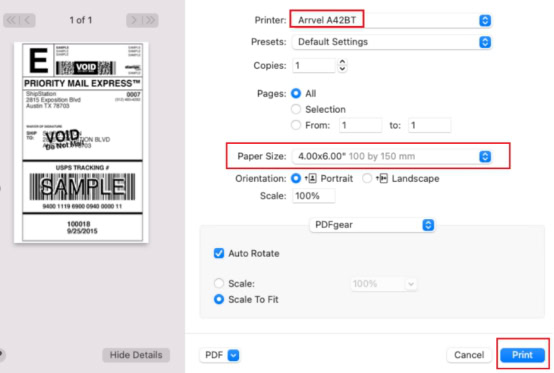
1. In the print preview interface, select the Arrvel A42BT printer.
2. Select paper size: 4 x 6 inches
3. Click Print
For Windows:
1. In the print preview interface, select the Arrvel A42BT printer.
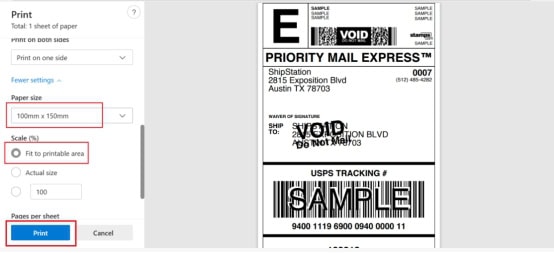
2. Select paper size: 100×150mm
3. Click Print.