The Printer Prints One or More Blank Shipping Labels After a Shipping Label (Printer Paper Skipping Malfunction).
When the printer skips paper, ensure that the paper size in the print document, label paper, and printer settings matches. If you are using the “FlashLabel Pro” app to print, ensure that the paper type set in the app matches the label paper type you are using.
Note: For accurate printing, please ensure the following four dimensions are aligned:
1. Your document size
2. Size of the label paper used
3. Size options selected in the print preview page
For example, if your label paper is 4×6 inches, make sure the label file is also 4×6 inches and the printer paper setting is also 4×6 inches.
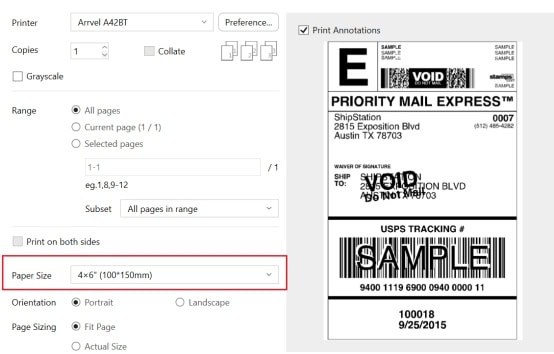
4. The paper type set in the application (if using FlashLabel Pro)
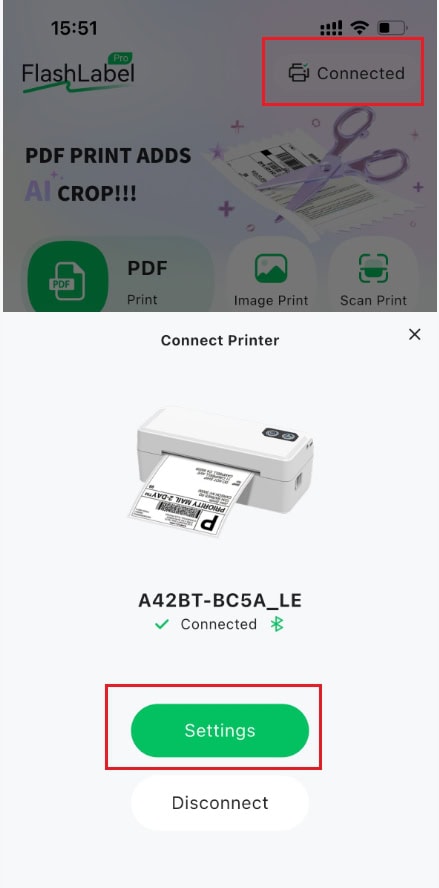
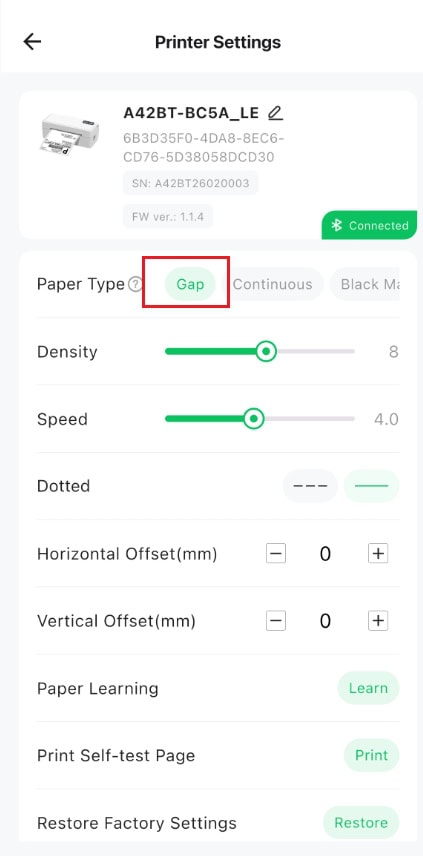
After connecting the printer, click “Settings” to enter the “Printer Settings” interface. Set the paper type to Gap.
If the problem persists, please follow these steps to calibrate the label:
Label size calibration:
1. Turn on the printer.
2. Load at least 4 sheets of paper into the printer consecutively.
3. After the paper stops moving, press and hold the Feeder button, and release it when you hear a “beep” sound.
4. The printer will automatically calibrate the label size back and forth, and the process is complete after it stops.